

“`html
Frustrated by Your WiFi Camera Dropping Offline? Here’s How to Fix It!
There’s nothing quite as frustrating as checking your security camera feed, only to find it offline. You invested in a WiFi camera for peace of mind, not an extra dose of tech headaches. If your security camera keeps disconnecting from your home network, you’re not alone. This common issue can leave you feeling vulnerable and questioning your setup. But don’t despair! Most WiFi camera connection issues are solvable with a bit of troubleshooting. In this comprehensive guide, we’ll dive into the common culprits behind dropped connections and provide actionable steps to help you get your camera back online and keep it there, ensuring your home stays securely monitored.
Understanding Why Your WiFi Camera Keeps Disconnecting
Before we jump into solutions, it’s helpful to understand the root causes. A WiFi camera relies on a stable connection to your home network, which then connects to the internet. Any disruption along this chain can lead to disconnections. Here are the most frequent reasons your WiFi camera keeps disconnecting:
- Poor WiFi Signal Strength: This is arguably the most common culprit. If your camera is too far from your router, or if there are too many physical obstructions (walls, large appliances), the signal can weaken to the point of intermittent or complete disconnection.
- Network Congestion: Modern homes are filled with WiFi-enabled devices – laptops, smartphones, smart TVs, game consoles, and more. All these devices compete for bandwidth. If your network is overloaded, your camera might struggle to maintain a stable connection.
- Interference from Other Devices: Other electronic devices operating on similar frequencies (like microwaves, cordless phones, or even your neighbor’s WiFi) can cause interference, disrupting your camera’s signal.
- Outdated Firmware: Just like your smartphone or computer, your WiFi camera needs its software (firmware) updated periodically. Outdated firmware can lead to bugs, security vulnerabilities, and connectivity issues.
- Router Issues: Your router is the heart of your home network. An old, malfunctioning, or improperly configured router can be the source of your problems.
- Power Supply Problems: An inconsistent power supply can cause the camera to reboot or lose connection. Ensure the power adapter is functioning correctly and the connection is secure.
- Insufficient Bandwidth: High-resolution cameras (especially those with 4K capabilities) require significantly more bandwidth. If your internet plan or WiFi network can’t handle the strain, the camera might drop out.
- Configuration Glitches: Incorrect network settings, IP conflicts, or misconfigured security protocols can prevent a stable connection.
Effective Solutions to Fix WiFi Camera Disconnect Issues
Now that we’ve identified the potential problems, let’s explore practical steps to fix WiFi camera disconnect problems and ensure reliable operation.
1. Optimize Your WiFi Signal and Placement
- Relocate Your Router or Camera: Try moving your router to a more central location in your home, or bring your camera closer to the router. Even a few feet can make a significant difference.
- Minimize Obstructions: Walls (especially thick ones), large metal objects, and appliances like refrigerators or microwaves can block WiFi signals. Try to place your camera and router in a line of sight with fewer impediments.
- Use a WiFi Extender or Mesh System: For larger homes or areas with weak signals, a WiFi extender or a mesh WiFi system can significantly boost coverage and provide a stronger signal to your camera.
- Check Signal Strength: Many camera apps offer a signal strength indicator. If yours doesn’t, use a WiFi analyzer app on your smartphone to map dead zones and weak spots.
2. Reduce Network Congestion and Interference
- Switch WiFi Channels: Your router operates on specific channels. If many neighbors are using the same channel, it can cause congestion. Access your router settings and try switching to a less crowded channel (e.g., 1, 6, or 11 for 2.4GHz).
- Utilize Dual-Band WiFi: If your router and camera support it, connect your camera to the 5GHz band. While 5GHz has a shorter range, it offers faster speeds and is generally less susceptible to interference than the 2.4GHz band.
- Prioritize Camera Traffic (QoS): Some routers offer Quality of Service (QoS) settings, allowing you to prioritize traffic for certain devices, like your security camera, ensuring it gets the bandwidth it needs.
- Unplug Competing Devices: Temporarily turn off or unplug other devices that might be causing interference (microwaves, cordless phones) to see if the connection improves.
3. Update Firmware and Check Router Health
- Update Camera Firmware: Regularly check your camera manufacturer’s website or camera app for firmware updates. Keeping your camera’s software current can resolve known bugs and improve stability.
- Update Router Firmware: Similarly, outdated router firmware can cause performance issues. Log into your router’s administration page and check for available updates.
- Reboot Your Router: A simple reboot can often clear temporary glitches. Unplug your router, wait 30 seconds, and plug it back in.
- Consider a New Router: If your router is several years old, it might not be able to handle the demands of modern smart home devices. Upgrading to a newer, more powerful router can drastically improve network performance.
4. Verify Power and Network Settings
- Check Power Supply: Ensure your camera’s power adapter is securely plugged in and functioning correctly. A faulty adapter can lead to intermittent power and, consequently, disconnections.
- Assign a Static IP Address: In some cases, dynamic IP addresses can lead to conflicts. Assigning a static IP address to your camera within your router’s settings can help ensure it always has a consistent network identity.
- Review Router Security Settings: Ensure your WiFi password is correct and your router’s security protocols (WPA2/WPA3 recommended) are not overly restrictive to your camera. Some cameras have issues with certain advanced security settings.
- Factory Reset the Camera: As a last resort, performing a factory reset on your camera and setting it up again can often resolve stubborn configuration issues. Refer to your camera’s manual for instructions.
Comparison: Common Wi-Fi Connectivity Scenarios & Solutions
To help illustrate, here’s a table comparing different scenarios and their most likely fixes for security camera WiFi connection issues:
| Scenario | Symptoms | Most Likely Cause | Recommended Solutions |
|---|---|---|---|
| Camera drops daily at varying times | Intermittent connection, sometimes reconnects on its own | Network Congestion, Weak Signal, Interference | Optimize router/camera placement, use WiFi extender, switch WiFi channels, enable QoS |
| Camera offline after power flicker/reboot | Doesn’t reconnect automatically, requires manual intervention | IP Address Conflict, Router Configuration, Outdated Firmware | Reboot router, assign static IP, update camera/router firmware |
| Camera consistently offline far from router | Never connects reliably in specific locations | Weak WiFi Signal, Physical Obstructions | Relocate camera/router, use mesh WiFi, remove obstructions |
| Camera disconnects only when microwave is on | Clear correlation with specific appliance use | 2.4GHz Interference | Switch to 5GHz band (if supported), relocate microwave/camera, change WiFi channel |
Product Spotlight: ShowMo WinEye – Secure Your Home with No-Drill Simplicity
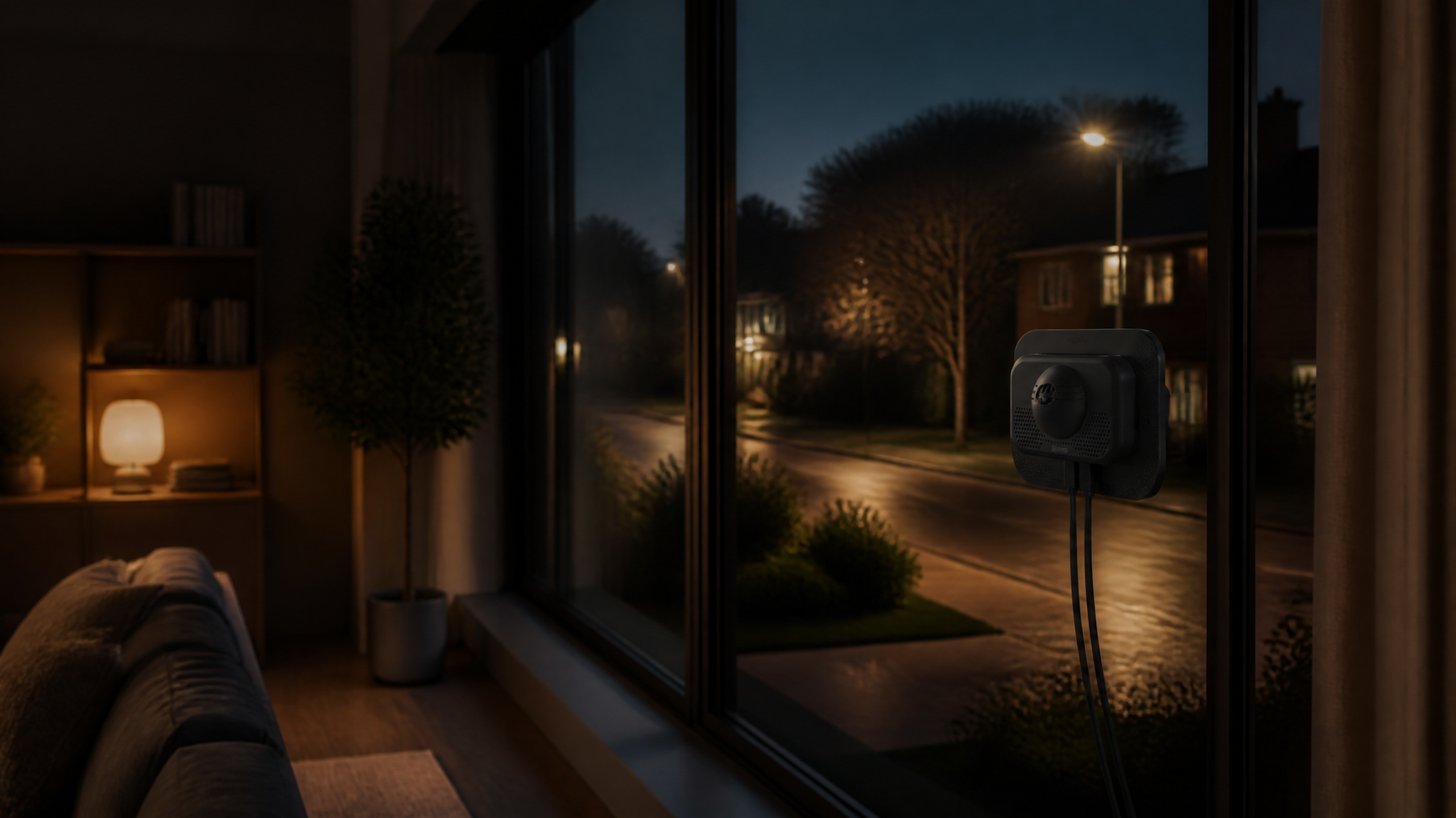
While traditional security cameras often require complex installations and expose themselves to the elements or vandalism, the ShowMo WinEye offers a revolutionary solution. This innovative window-mounted indoor security camera provides exceptional outdoor security without any drilling, wiring hassles, or outdoor exposure. Simply place it on your window, and its cutting-edge technology handles the rest. Boasting crisp 4K night vision, the WinEye captures crystal-clear footage even in complete darkness, ensuring you don’t miss a thing. Its unique design keeps the camera safely inside, protecting it from weather and tampering, while still giving you a clear view of your property. If you’re looking for an easy-to-install, high-performance security camera that minimizes WiFi camera connection issues by being centrally located within your home, the ShowMo WinEye is an ideal choice.
Frequently Asked Questions About WiFi Camera Disconnections
Q1: Why does my camera show “offline” even when my internet is working fine?
While your internet might be working, the issue is often isolated to your local WiFi network’s connection with the camera. Common causes include a weak WiFi signal to the camera, network congestion from other devices, or interference. Your router’s ability to communicate reliably with all devices is key, even if the internet connection itself is stable.
Q2: How can I tell if my WiFi signal is strong enough for my camera?
Many security camera apps include a signal strength indicator within their settings. If yours doesn’t, you can use a WiFi analyzer app on your smartphone (available for iOS and Android) to physically check the signal strength (measured in dBm) at your camera’s location. A reading between -30 dBm and -60 dBm is generally considered good to excellent, while anything weaker than -70 dBm will likely cause connection issues.
Q3: Should I connect my camera to 2.4GHz or 5GHz WiFi?
It depends on your camera’s location and capabilities. The 2.4GHz band offers a longer range and better penetration through walls, making it ideal for cameras placed further from your router. However, it’s more prone to interference and network congestion. The 5GHz band provides faster speeds and less interference but has a shorter range and struggles more with obstacles. If your camera is close to the router and supports 5GHz, that’s often the better choice for stability and performance. For cameras further away, 2.4GHz is often necessary, but ensure you’ve optimized channel selection and minimized interference.
Conclusion: A Stable Connection for Total Peace of Mind
A reliable WiFi connection is the bedrock of effective home security with a wireless camera. By systematically addressing potential issues like signal strength, network congestion, and outdated firmware, you can significantly reduce instances of your WiFi camera keeps disconnecting. Remember to keep your camera’s and router’s firmware updated, optimize their placement, and consider solutions like WiFi extenders or the innovative, easy-to-install ShowMo WinEye to enhance your system’s stability. A little troubleshooting goes a long way in ensuring your peace of mind and keeping your property securely monitored, 24/7.
“`